
Deploying Time Squeeze with Microsoft Intune
Before you start
Section titled “Before you start”- Ensure you have a Time Squeeze account. If you don’t have one, see Time Squeeze Quick Start.
- Ensure you have enough licenses for the devices you are deploying to. You can purchase additional licenses as needed from the Time Squeeze portal -> Licenses (Add/Remove) -> Buy Licenses.
-
Create your Time Squeeze Powershell Deployment Script.
- Go to the Time Squeeze portal -> Install Time Squeeze -> Deployment instructions.
- Copy the script and save it as a .ps1 file. You can use Notepad or any other text editor.
- It will look something like this (This is a sample script. Your script will have your unique ID):
Time Squeeze Deployment Script # KEEP THIS SCRIPT CONFIDENTIAL TO PREVENT YOUR LICENSES FROM BEING TAKEN AND YOUR EMAIL FROM BEING EXPOSED.# Copy and save this as a .ps1 file to upload to Intune.winget install 9NFJXWBLWGMP --silent --accept-source-agreements --accept-package-agreements --disable-interactivityStart-Sleep -Seconds 10timesqueeze.exe --register="YOUR SUPER SECRET ID"echo "closing in 5 seconds..."Start-Sleep -Seconds 5 -
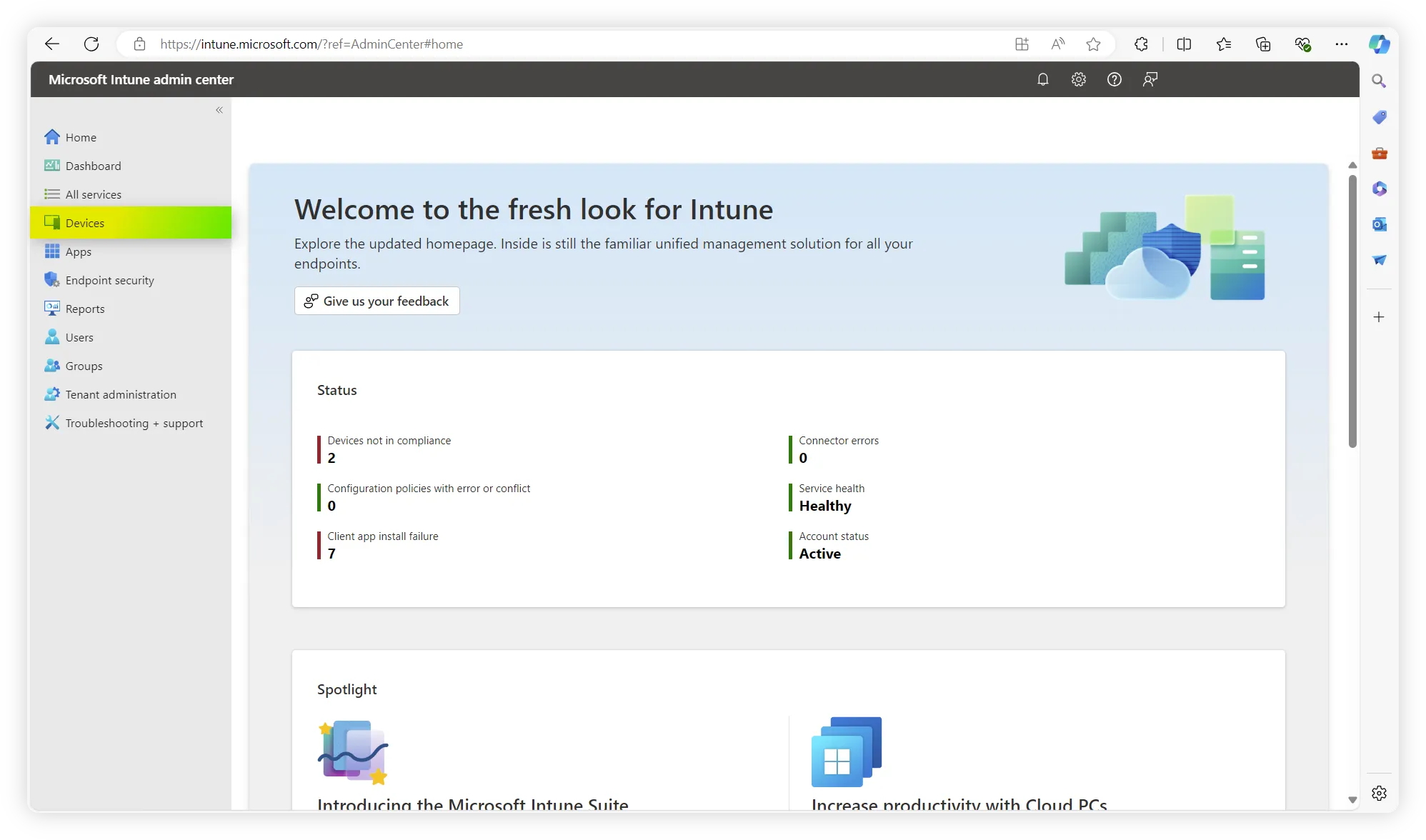
Log into the Microsoft Intune admin center. Click “Devices” on the left pane.
-
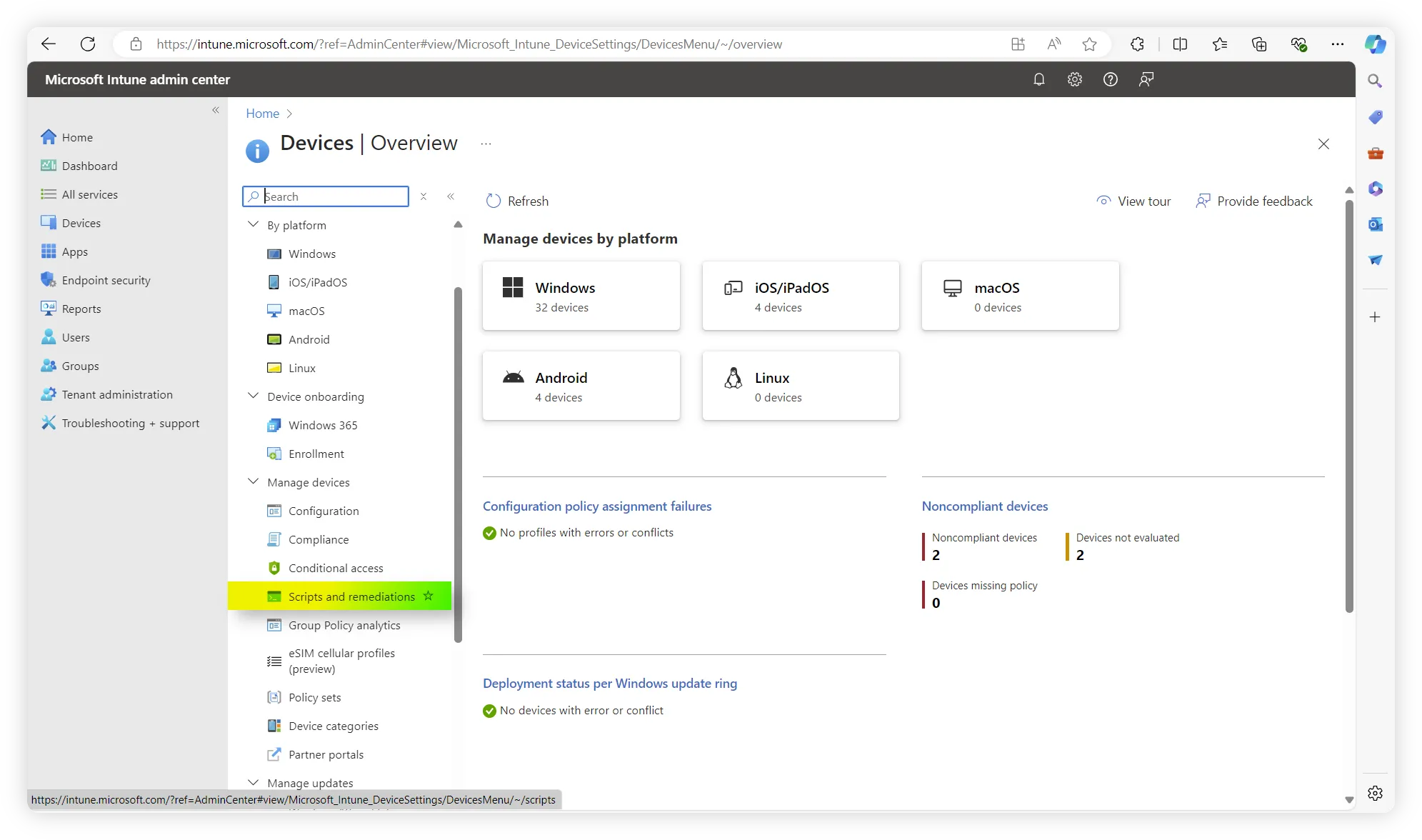
Click “Scripts and remediations”
-
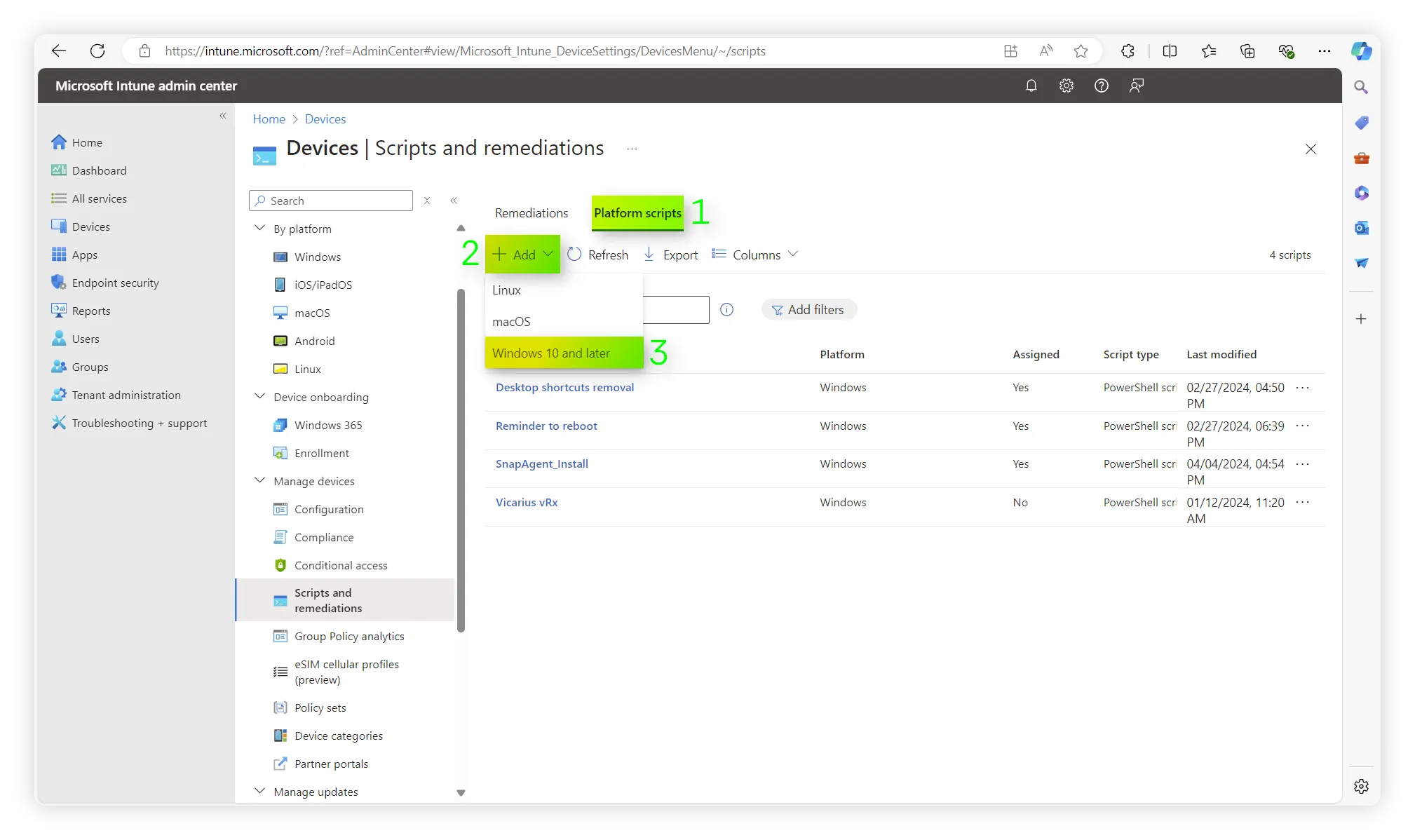
Click Platform scripts -> Add -> Windows 10 and later.
-
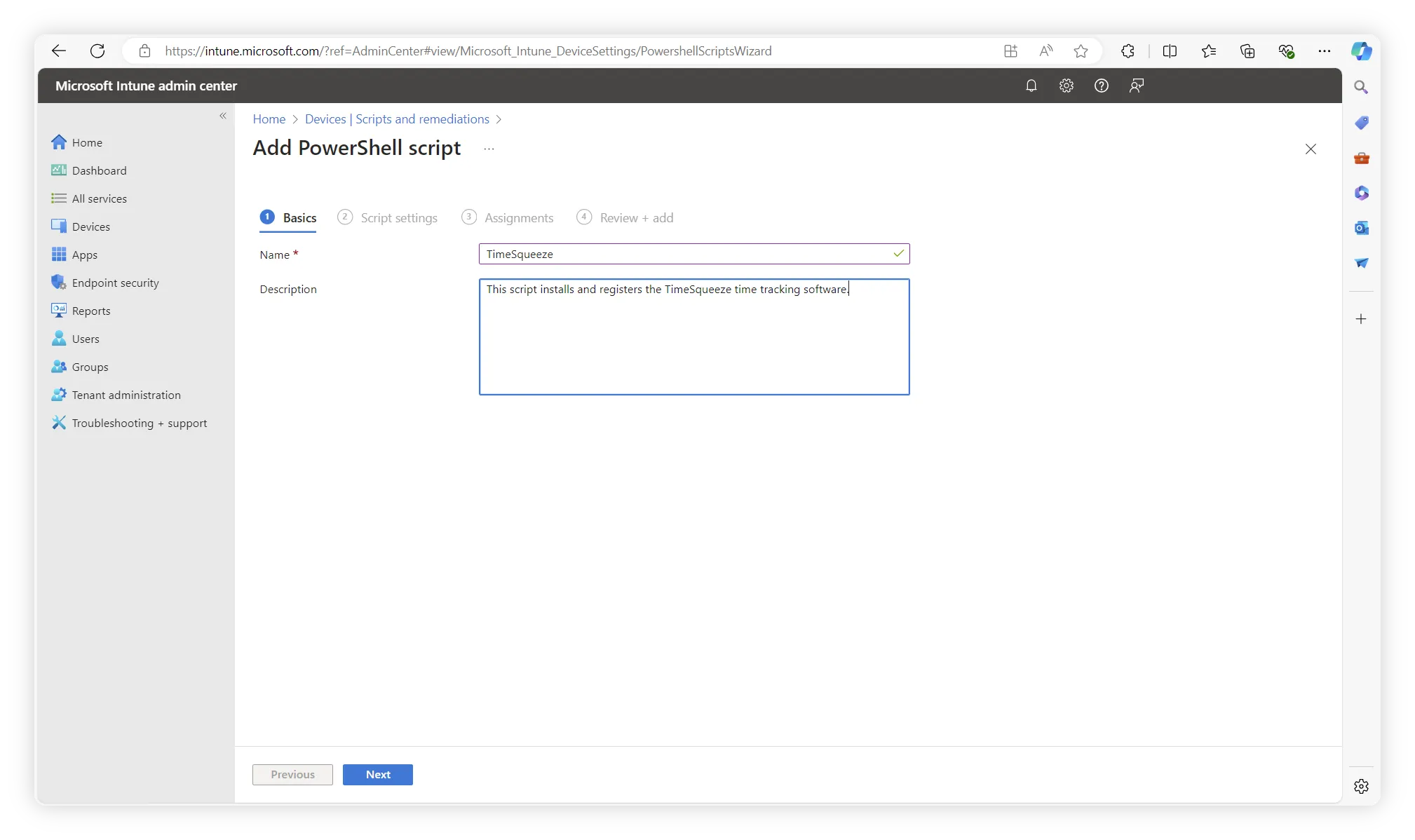
Provide a convenient name and description. Then click “Next”.
-
Under “Script Location”, upload the script file you created in step 1.
- Set “Run this script using the logged in credentials” to “Yes”
- Set “Enforce script signature check” to “No”
- Set “Run script in a 64 bit PowerShell Host” to “No”
- Click “Next”
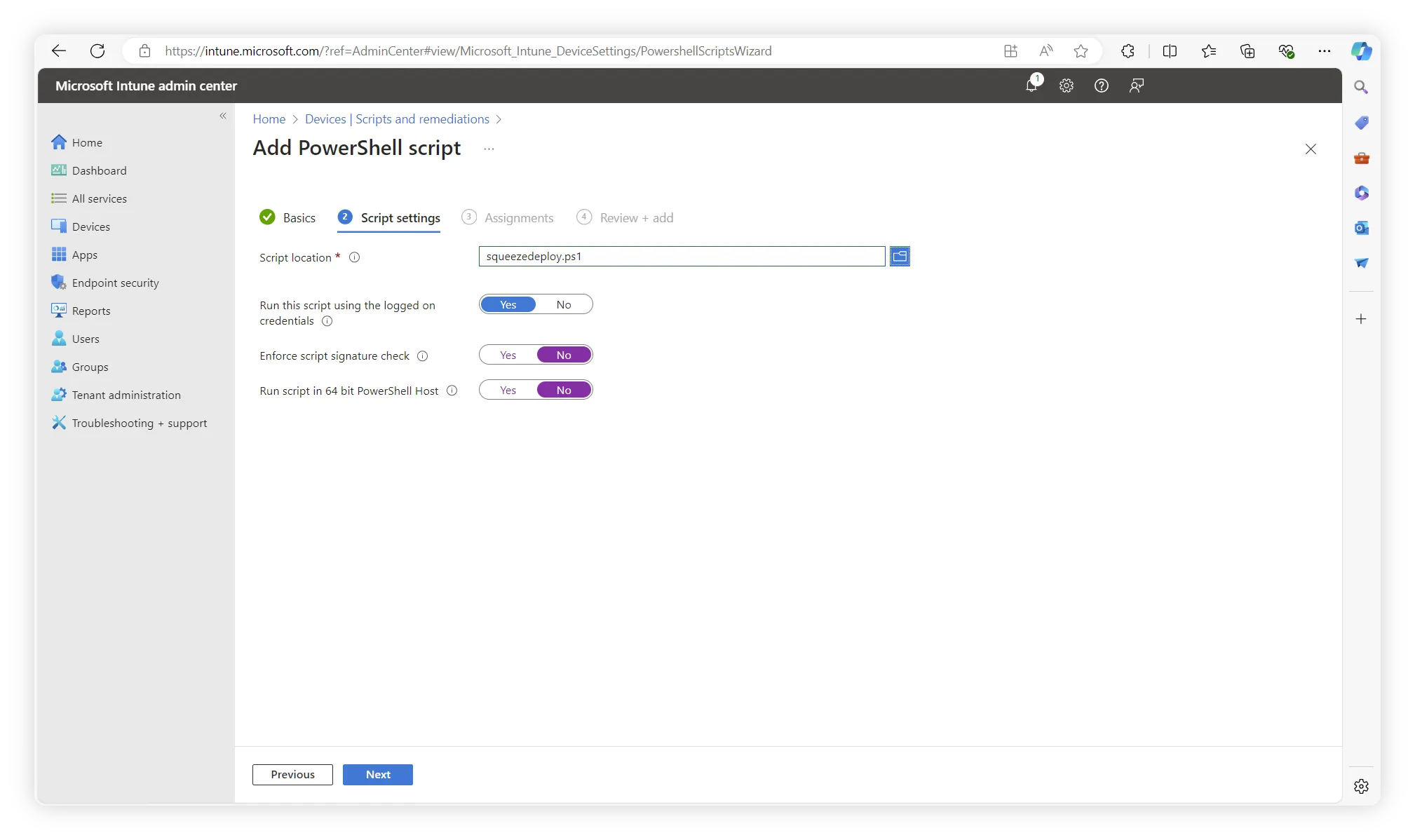
-
Select your desired groups, users, or devices.
- Note that Time Squeeze is licensed per device. If you deploy to a user, ensure that you have enough licenses for all their devices.
- Click “Next”
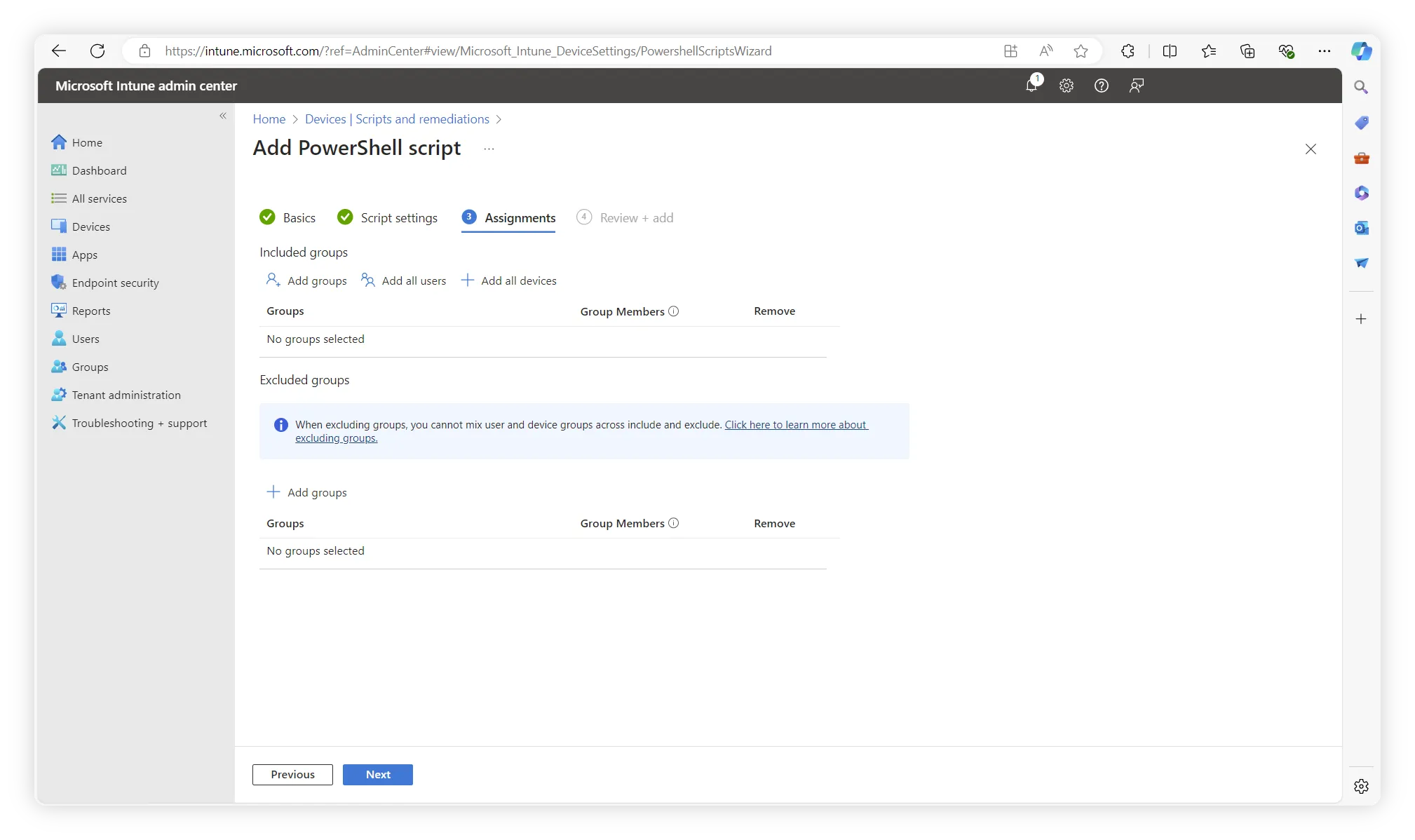
-
Review your settings and save the script.
- Your devices will install and register Time Squeeze shortly.
For more information, see Use PowerShell scripts on Windows 10/11 devices in Intune